
AVAYA SUPPORT
Avaya IP Office Support, Repairs and Supply
Total Solutions IT is an authorised Avaya repairer and supplier. We provide Avaya IP Office support for systems across Australia, including the IP Office 500 V2. That covers fault finding, programming, handsets, headsets and parts. Call 02 6061 4222 for Avaya support.
Avaya IP Office phone systems
Got an Avaya fault, change or question? Call us on 02 6061 4222.
What is Avaya IP Office?
Avaya IP Office is a business phone system that suits anything from a small office to a multi-site business. We support the IP Office 500 V2 and the handsets, headsets and applications that go with it.
IP Office has been sold in software editions (Basic, Essential and Preferred in Australia), so businesses only pay for the features they need. Which edition you have depends on your release, so ask us.
It also puts calls, email, voicemail, video, messaging and presence on a phone or tablet, so staff can work away from their desks.
Talk to our teamIf your Avaya system is playing up, needs a part, or you want to know what to do next, we can help.
Authorised Avaya repairs and supply
We are an authorised Avaya repairer and supplier. Here is what we do for Avaya IP Office customers.
Avaya repairs
Dead handset, no dial tone, dropped calls or a control unit that won't start. We diagnose and repair IP Office systems, cards and handsets.
Handsets and headsets
We supply Avaya J-series, 1400, 1600, 9500, 9600 and DECT handsets, plus compatible headsets.
Parts and expansion
Power supplies, cards, licences and extra capacity. If your Avaya system needs something, we can get it.
Programming and changes
New extensions, hunt groups, auto attendant, voicemail, call routing and holiday greetings, changed for you.
Avaya support
Remote and on-site help for Avaya IP Office, with IT support when the fault is in your network.
Release upgrades
Check your release, upgrade to Release 12 or plan a move to a hosted phone system.
Avaya IP Office status and upgrades
Avaya's lifecycle has changed in recent years. This is what it means for your system, based on Avaya's published notices.
Check your release
Avaya's end of sale notice of 11 June 2024 says IP Office Release 11.1 and earlier stopped getting critical patches and service packs from 12 August 2024, and manufacturer software support ended on 12 August 2025.
IP Office continues on Release 12
IP Office is not discontinued. Release 12 became available on 14 May 2024, and Avaya published Release 12.3 release notes on 30 April 2026.
Support and upgrades
Avaya's IP Office Support Services (IPOSS) covers the current and previous release. Moving to Release 12 needs the right licences. We can tell you what your system needs.
Moving to the cloud
Some customers use an upgrade as the time to move to a hosted phone system. Our tsit.cloud platform is powered by Vodia and works with Yealink and Grandstream handsets.
See tsit.cloudOlder systems still work
An older release without manufacturer support keeps working. We can keep supporting it, supply handsets and parts, and plan upgrades with you.
Check your support
Support depends on your release and contract. Call us on 02 6061 4222 and we'll help you check.
Call 02 6061 4222Avaya IP Office pros and cons
An honest look at Avaya IP Office.
Reliable
A stable platform with a long track record in business phone systems.
Voicemail and CTI included
Voicemail is included, and basic CTI lets you dial from your screen. Advanced versions cost extra.
Strong call handling
Flexible call routing, auto attendant and ACD options, and optional call centre and conferencing applications.
Unified messaging
Voicemail, email and fax in your inbox (option), plus Microsoft Exchange synchronisation.
Easy to manage
Administrator software and self programming are included, so many changes can be done in house.
Networking and remote users
Integrated firewall, VPN support, DECT compatibility and good multi-site networking.
What to watch
Avaya's focus has moved towards larger enterprise and cloud customers, and older releases are out of manufacturer support. Good local support matters more now.
The short version
IP Office is still a strong system for multi-site businesses and remote staff. If you're also weighing up a hosted phone system, we can compare both. Call 02 6061 4222.
Call 02 6061 4222Avaya IP Office features
The features most businesses use every day. Some need extra licences, and we'll tell you which.
Call transfer
Send a caller to the right person with one button.
Hold
Park a caller and pick them up at any handset.
Cordless handsets
Add DECT handsets for staff who move around.
Night and holiday messages
Switch to a night or holiday message with one button, or automatically with a call schedule.
Personal voicemail
Every user gets a mailbox with on-screen prompts.
Voicemail to email
Get your messages in your inbox, wherever you are.
Auto attendant
Answer calls and send callers to the right person or group.
Conference calls
Get everyone on one call, wherever they are.
VoIP calls
Use SIP trunks for cheaper calls.
Remote staff
Staff can work from anywhere and stay connected to the phone system.
Avaya handsets: supply and repair
We supply and repair Avaya IP Office handsets across the J-series, 1400, 1600, 9500, 9600 and DECT ranges, with quick reference guides for most models. Not sure which model you have? Send us a photo.
Avaya J series IP handsets
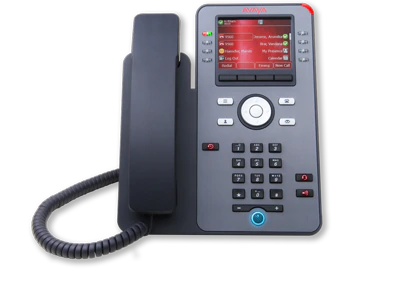
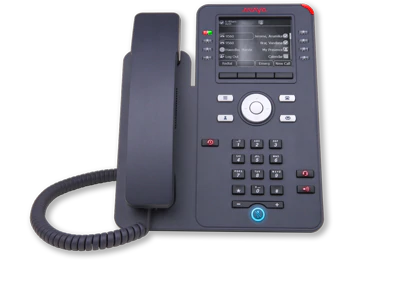
Avaya J129 IP phone
Basic phone for lobbies, meeting rooms and walk-up locations.
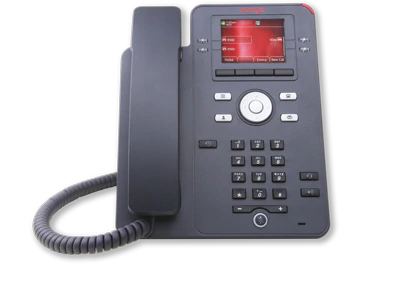
Avaya J139 IP phone
For users who need only the most common features.
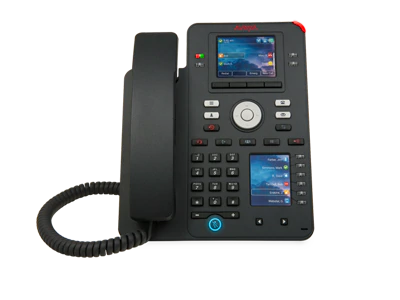
Avaya J159 IP phone
Compact desk phone for people who use their phone a lot.
Avaya J179 IP phone
Full UC features, including advanced capabilities.
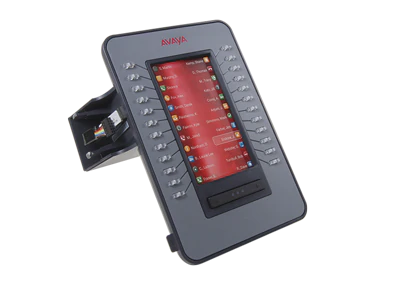
Avaya J100 expansion module
Expansion module for the J169 and J179 to manage more calls.

Avaya B199 conference phone
Conference phone with one-touch meeting entry for rooms of any size.
Avaya 1400 series digital handsets
The 1400 series is the budget digital range, with a traditional look and feel. The 9500 series is the premium digital range.

Avaya 1403 digital phone
Entry level digital phone for basic users and low-call locations.
Download guide
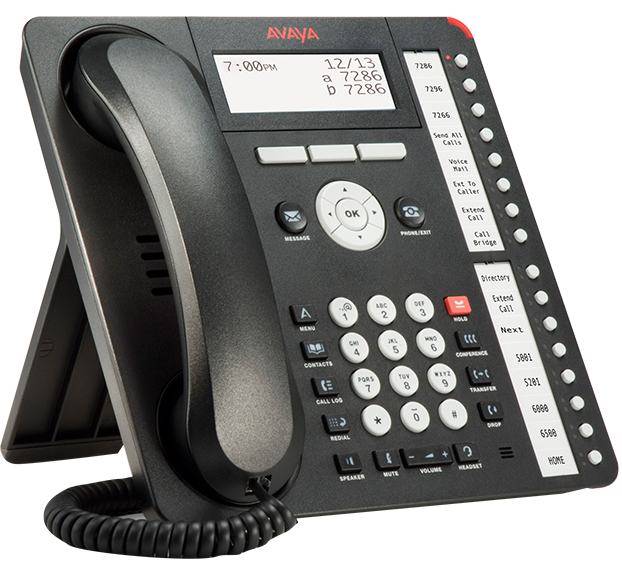
Avaya 1416 digital phone
The top 1400 series model for receptionists and managers, with more buttons.
Download guideAvaya 9500 series digital handsets
The 9500 handsets have larger displays, with more on screen and less on printed labels.
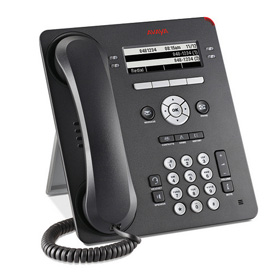
Avaya 9504 digital phone
Entry level 9500 series digital phone with a feature rich design.
Download guide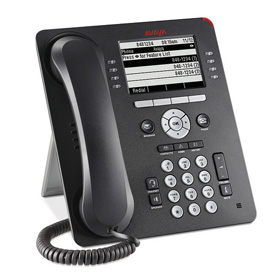
Avaya 1600 series IP handsets
The 1600 series is the budget IP range, with the same core functions as the 9600 series at a lower price.


Avaya 1608 IP phone
Everyday IP phone with a familiar design. One of the most popular.
Download guideAvaya 9600 series IP handsets
The 9600 handsets have larger displays, with more on screen and less on printed labels.

Avaya 9601 IP phone
Entry level 9600 series IP phone for basic users.

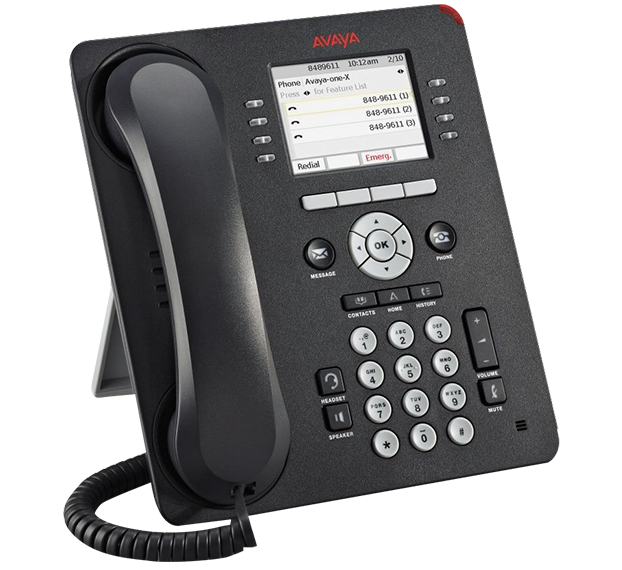
Avaya 9611G IP phone
Mid range gigabit IP phone for heavy users, and one of the most popular.
Download guide


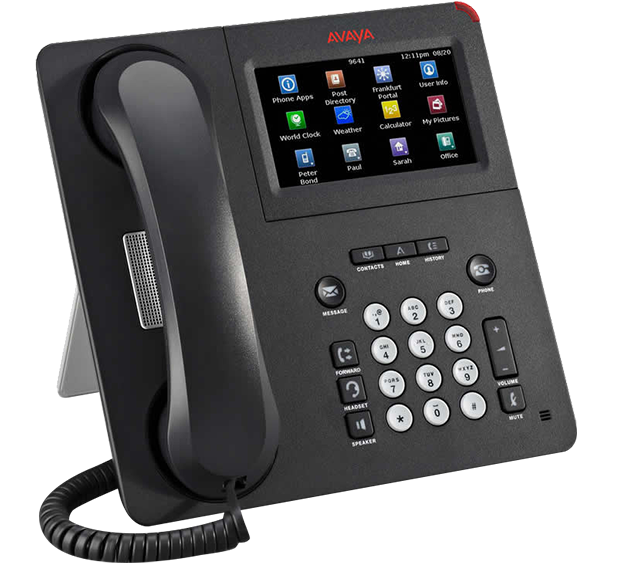
Avaya 9641G IP phone
Navigator phone for receptionists, with a large colour touch screen.
Download guide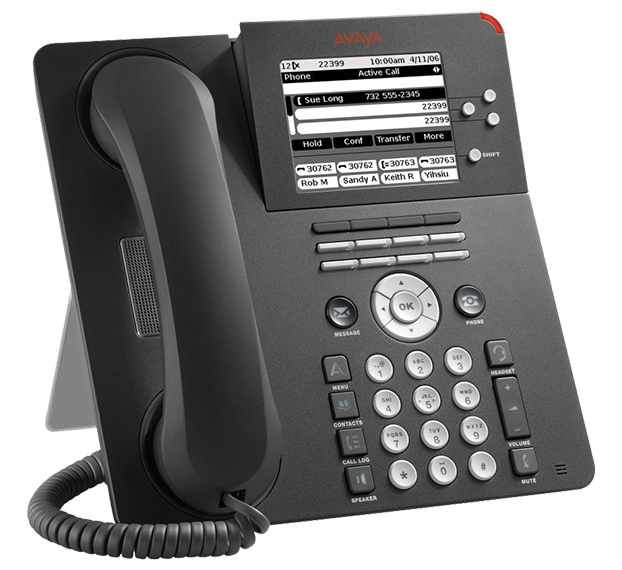
Avaya 9650 and 9650C IP phone
Premium phone for heavy users and receptionists, in a choice of colours.
Download guide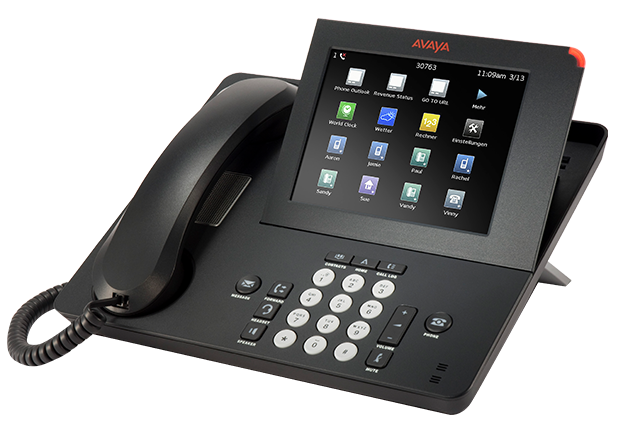
Avaya 9670G IP phone
The flagship 9600 series phone, with a large colour touch screen for managers and executives.
Avaya DECT handsets
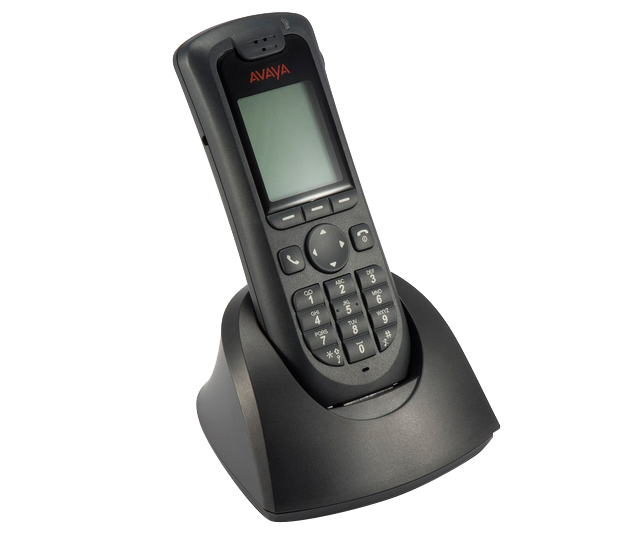
Avaya 3720 DECT handset
Entry level Avaya DECT handset, replacing the 3701.
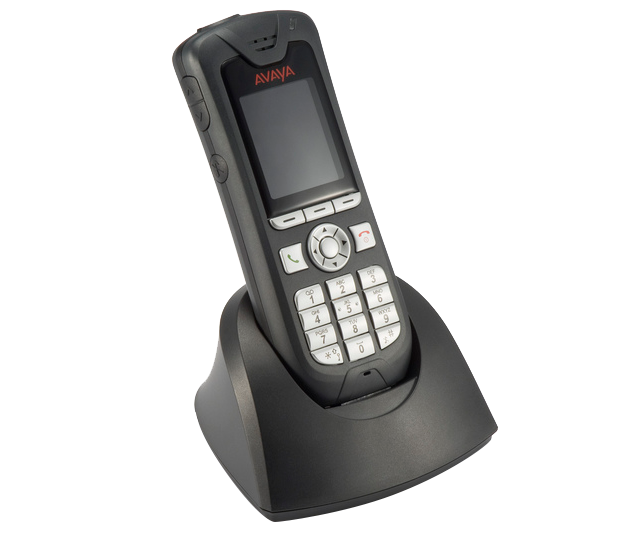
Avaya 3725 DECT handset
Higher spec DECT handset with more features than the 3720, for building a cordless network across the site.
Older Avaya handsets


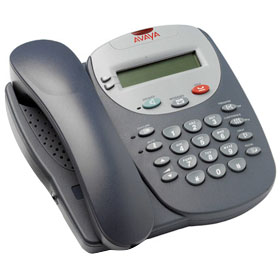

Avaya 5602 IP phone
Older handset we can still repair and supply.

Avaya 5610 IP phone
Older handset we can still repair and supply.
Need a handset, an expansion module or a repair? We supply and repair Avaya handsets and parts. Call 02 6061 4222 or send an enquiry.
Ask about Avaya handsetsAvaya headsets
We supply wireless and corded headsets that work with Avaya handsets, plus Yealink and Jabra headsets for any phone system.

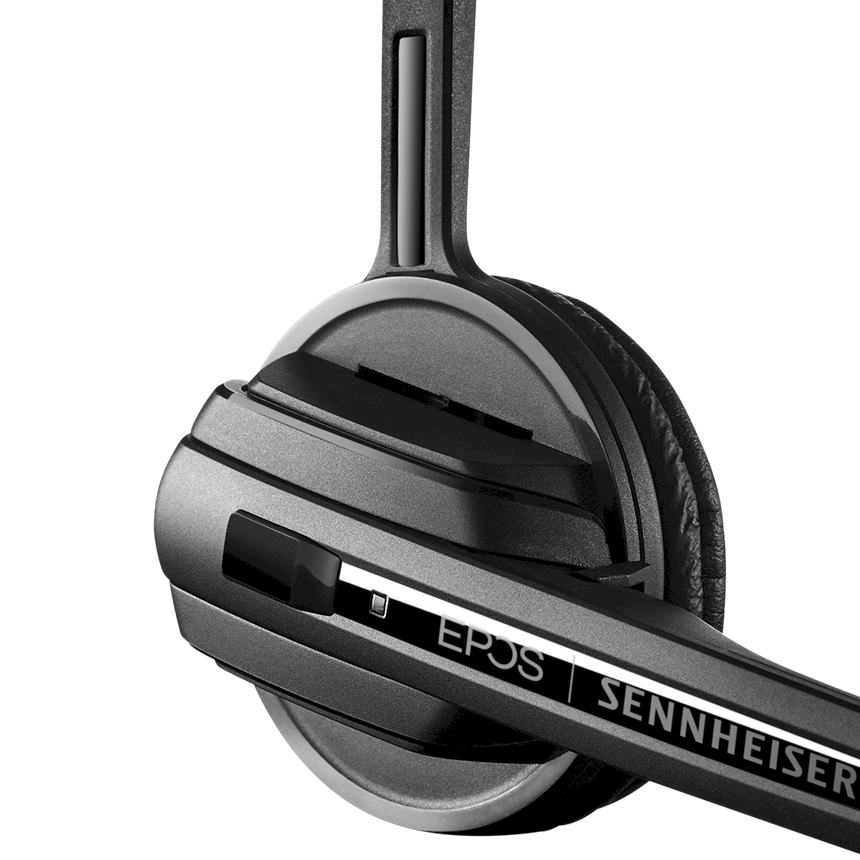
Sennheiser D 10 Phone wireless headset
A DECT wireless headset with clear, natural sound and room to move around the office. Choice of wearing styles, simple connection to one device and magnetic docking and charging.

Sennheiser IMPACT DW Series
Clear communication and all-day comfort in a hard-wearing design that suits busy contact centres. Includes hearing protection and easy call management.
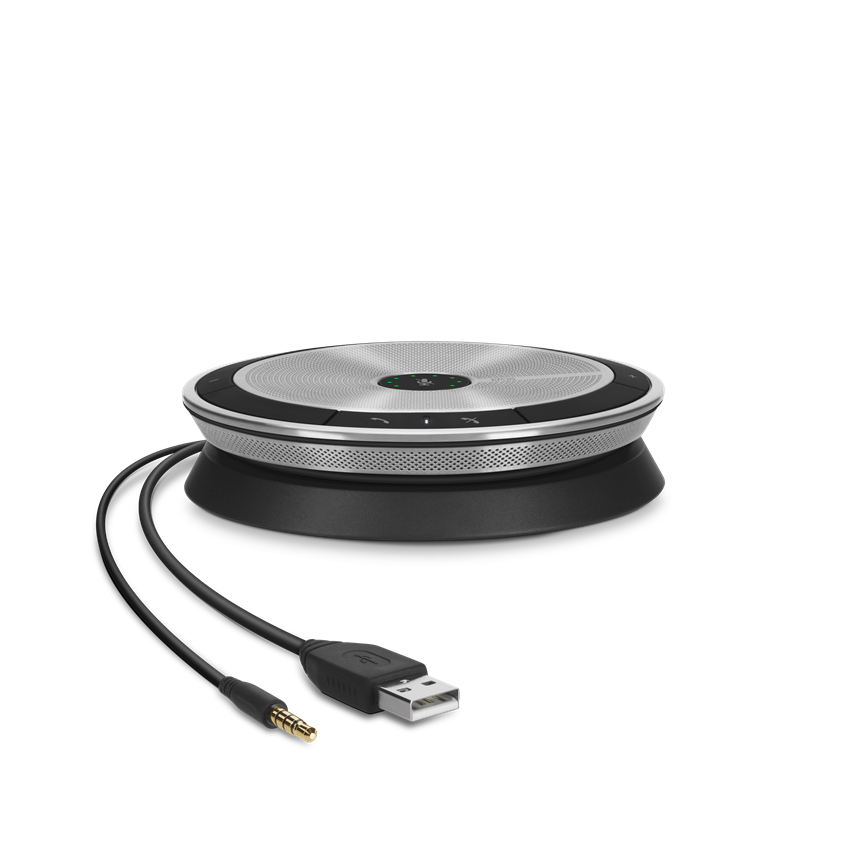
Sennheiser EXPAND 20 Series
Portable speakerphones for mobile professionals. Plug-and-play conferencing anywhere, for personal or small group calls.
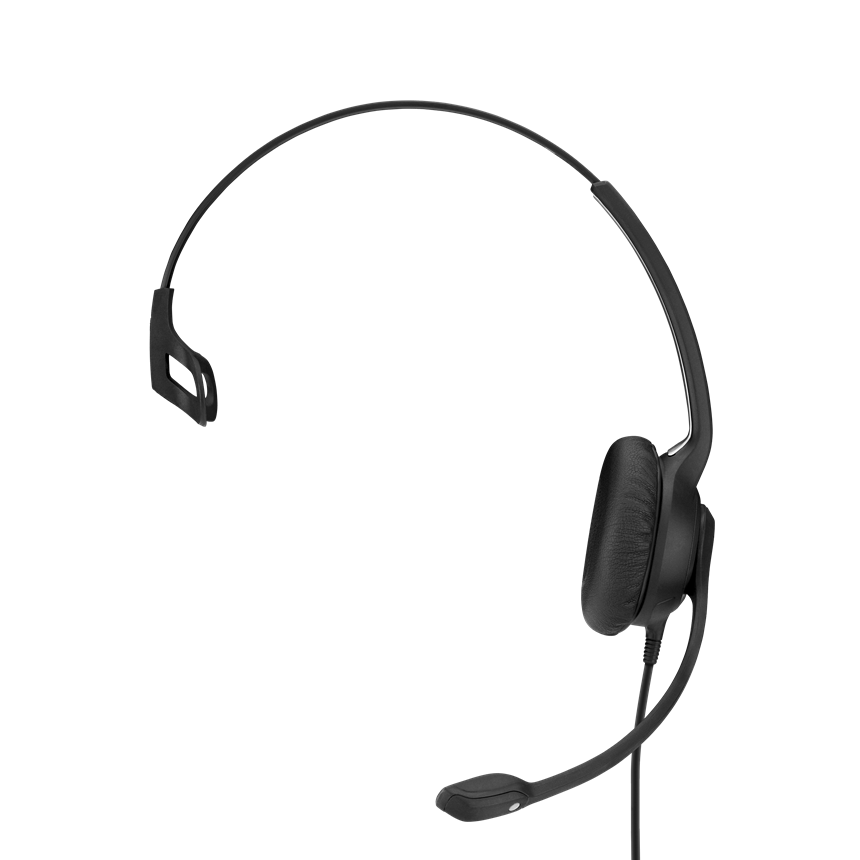
Sennheiser IMPACT 200 Series
Part of the Sennheiser IMPACT range of office headsets. Ask us which model suits your handset and how you work.
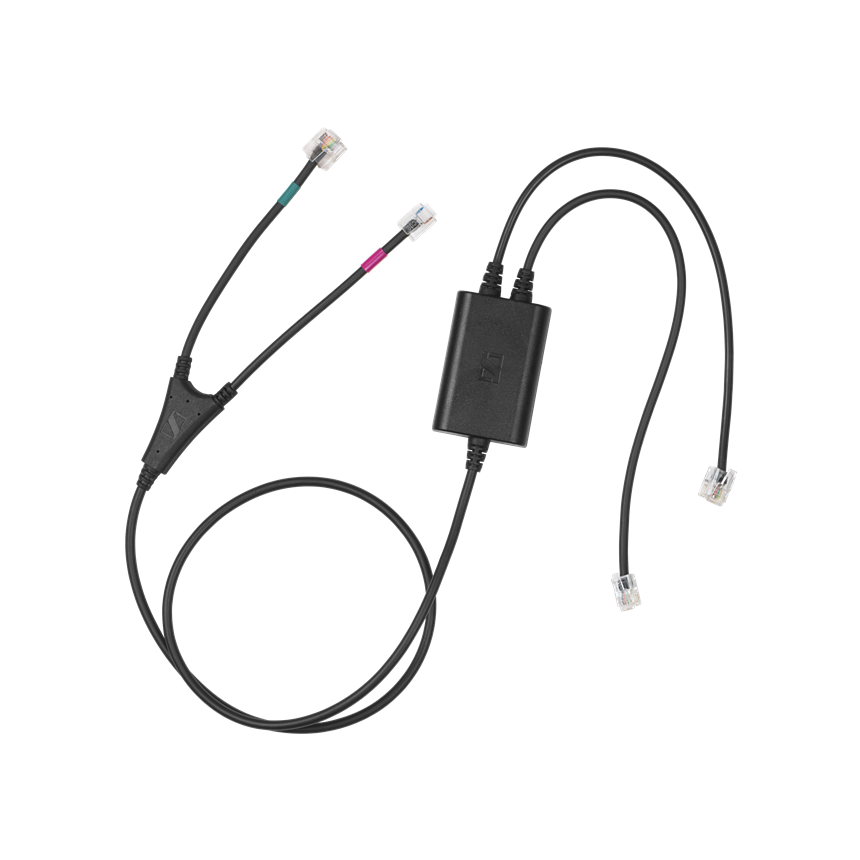
Sennheiser CEHS-AV 05
Electronic hook switch cable for Avaya EHS compatible phones. Works with the wireless IMPACT SDW 5000, DW, SD and D 10 series. Check compatibility with your handset.

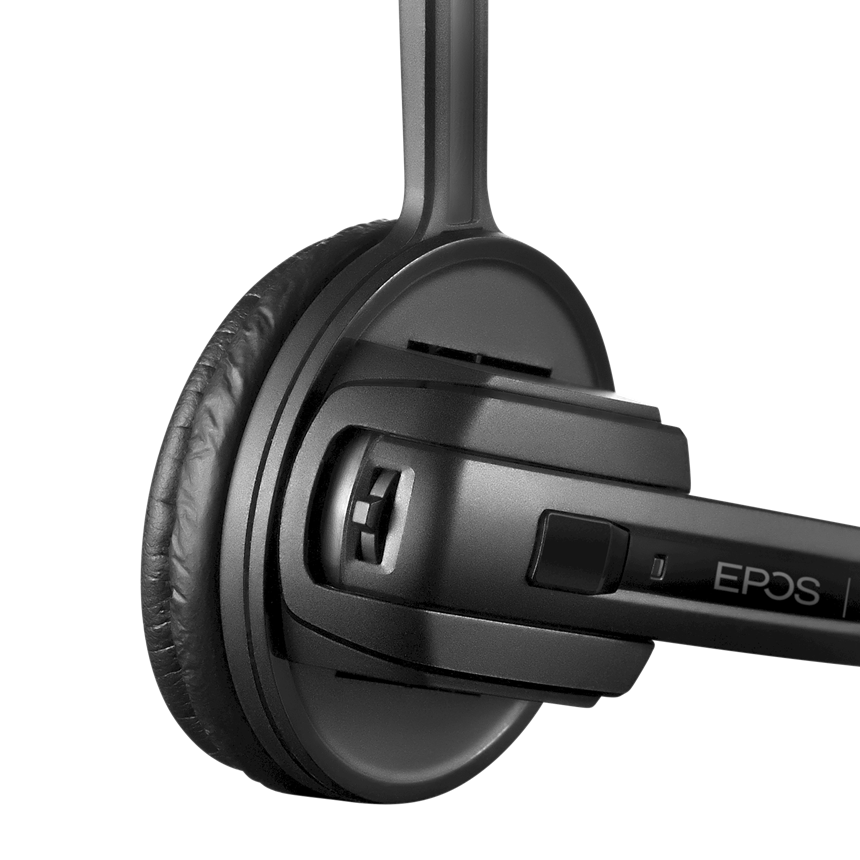

Messages On Hold and AI voiceovers

Messages On Hold has been writing and recording on-hold messages since 1988. Their messages play at over 10,000 sites in more than 25 languages across 22 countries, and you've probably heard their work if you've called us.
We now also use state-of-the-art AI voiceovers, so your on-hold messages, greetings and auto attendant prompts can be written, recorded and changed quickly, in a natural sounding voice.
AI voiceovers
State-of-the-art AI voices for on-hold messages, welcome greetings and auto attendant prompts, ready fast and easy to update.
After hours and holiday messages
Different messages for after hours, public holidays and busy periods, loaded onto your Avaya system.
Scripts and recording
Script writing and in-house recording, plus VideoUpdate.Me for video messages.
Demo audio
Have a listen, or contact us for a custom demo for your business.
Avaya brochures and user manuals
Download Avaya handset brochures, quick reference guides and user guides. Can't find a manual? Ask us and we'll track it down.
Brochures
Quick reference guides
User guides
Avaya quick help
Answers to common Avaya IP Office questions. If you get stuck, call us on 02 6061 4222.
Change the night message
These steps apply to Avaya systems including the IP Office 500. Dial the access code for the mailbox you are recording and enter your password. Dial 3 for setup options, then 2 to start recording and 2 again to stop. Dial 1 to listen back. Dial 3 to save, or 4 to save on an endless loop that doesn't let callers leave a message.
This is the common method, but Avaya systems can be heavily customised, so it may not work on yours. If you don't know your access code or get stuck, call us on 02 6061 4222.
Change incoming call and on-hold prompts
These steps apply to Avaya systems including the IP Office 500.
1. To setup first message dial *91(hunt group ext) and follow the prompts to record and save the message. 2. To setup second message dial *92(hunt group ext) and follow the prompts to record and save the message. 3. Under the hunt group you wish to apply the prompts on, open the announcements tab and configure the setting to however you desire.
Change call routing
For after hours calls to go to your message bank, press the Night 1 button. For public holidays, press Night 2 to send calls to your holiday message.
To switch automatically, ask us to set up a call schedule. If you need more than the two default night messages, let us know.
Divert calls when you are out
To divert all calls to an external number: press Features, scroll to Forward, choose Forward Unconditional, enter the number, select All Calls and press Done.
Follow me to diverts all calls to another internal extension. Follow me here diverts calls from another extension to yours.
Update contact buttons
Press the Features soft key, scroll to Phone User then Self Administer, and enter your security or login code. Scroll to Abbreviated Dial, enter the number, press the physical button you want it on, and select back to exit.
Ring pattern, buttons and Do Not Disturb
Ring pattern: press Menu, then Personal Ringing, pick a pattern and press Save.
Extension on a button: scroll to User BLF, enter the extension and press the button. Send All Calls button: scroll to Send All Calls and press the button you want.
Do Not Disturb: press Features, scroll to Call Settings, select Do Not Disturb, and press Clear to turn it off.
Avaya 1416 basics
Call from contacts: press CONTACTS, scroll to the person, press OK or the call soft key. Add a contact: CONTACTS, More, New, enter the name on the dial pad, OK, enter the number, Save.
Answer: lift the handset, or press SPEAKER or HEADSET. Hold: press HOLD, then press the held call button to resume. Transfer: press TRANSFER, dial, press TRANSFER again. Conference: press CONFERENCE, call the person, press CONFERENCE again when they answer.
Voicemail: the MESSAGE button lights for new messages. Press it, enter your password if asked and follow the prompts.
Download the 1416 quick reference guide
Avaya J series basics
Make a call: just dial. The first free appearance button is used. Answer: a slow flashing button means an incoming call, and Ignore quiets the ring.
Volume: press the minus or plus VOLUME key. Conference: with a connected call and held calls, press Conf. Transfer: press Transfer, dial or pick from the directory, then complete the transfer. You can store up to 100 personal contacts.
Download the J169 quick reference guide
Voicemail to email
Ask us about Microsoft 365 integration so voicemail lands in your inbox wherever you are.
Ask about Microsoft 365Avaya support: call, email or send an enquiry
We are an authorised Avaya repairer and supplier. Our technicians support Avaya IP Office systems across Australia.
We handle telecommunications and IT together, so if the fault is in your network we can fix that too. We also offer monitoring for critical systems and will contact you if we spot a problem.
Need Avaya support?
Call 02 6061 4222 or send an enquiry. We repair and supply Avaya IP Office systems, handsets, headsets and parts.